Timesheets
This article describes how to set up and create timesheets in CreataCRM and add them to Accountancy packages
Set up timesheet rates
Timesheet rates are the rate of pay (eg. Normal hourly pay, Time and a Half, Double Time) for an employee.
If you have an accountancy package, these can be imported from there.
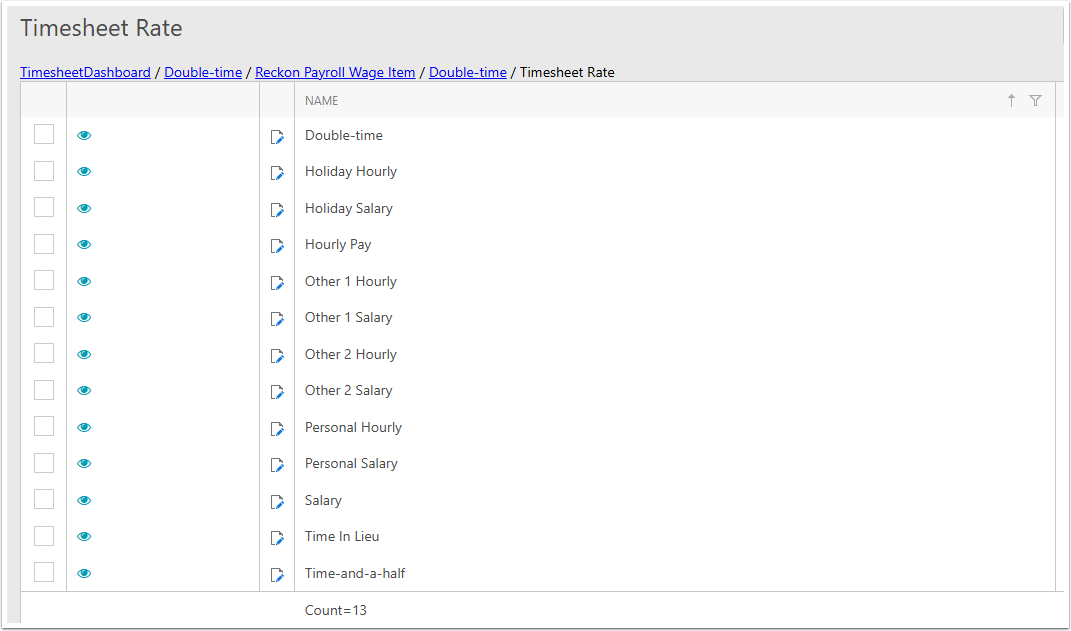
Importing from Reckon
Go to Reckon Settings...
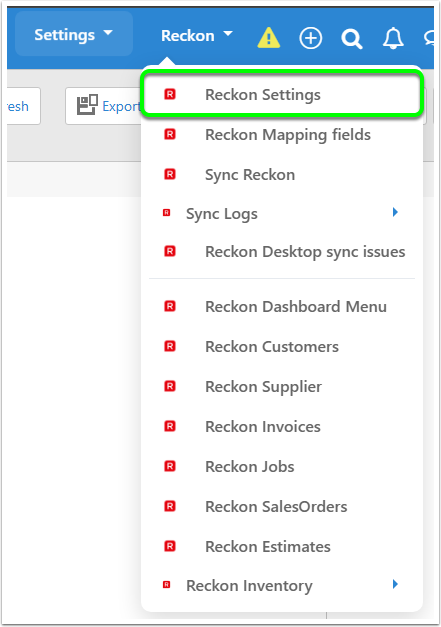
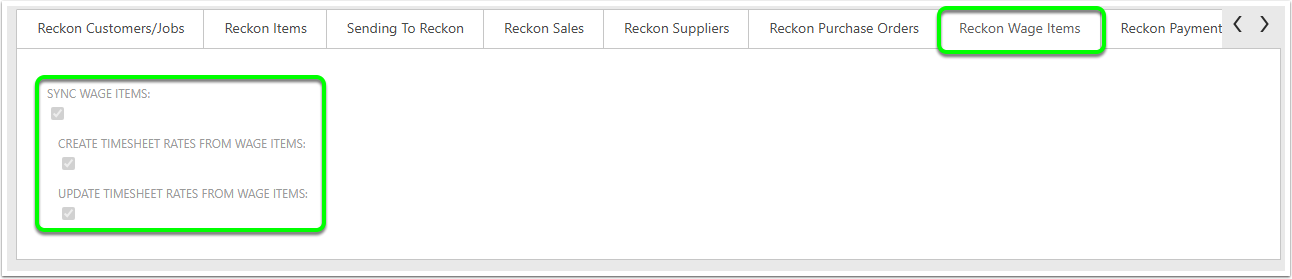
and ensure the following settings are enabled:
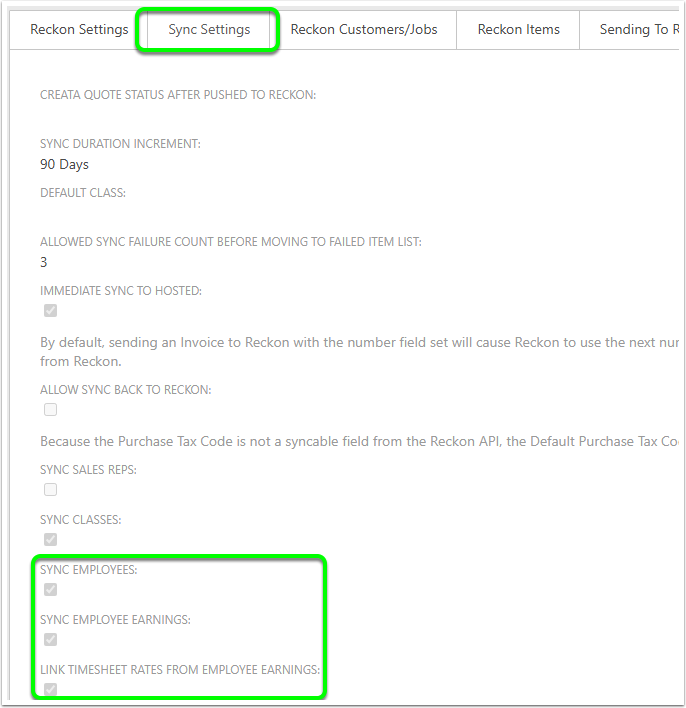
Also ensure that these settings are enabled.
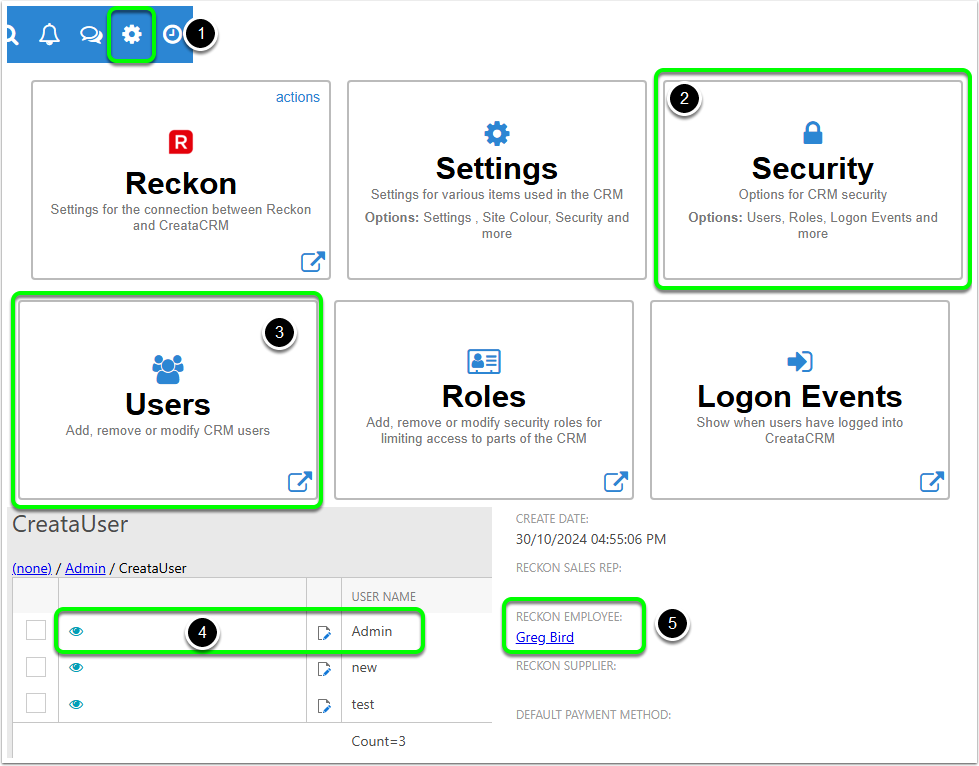
You will also need to ensure that each user is linked to a Reckon Employee.
The field is at the bottom of the right hand column in the User Detail view.
Importing from MYOB
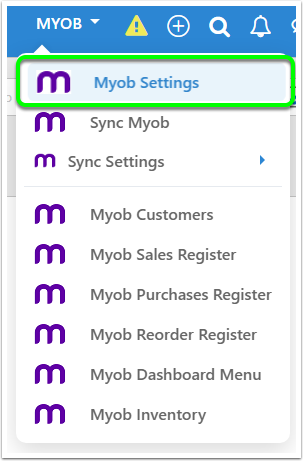
Go to the MYOB Settings...
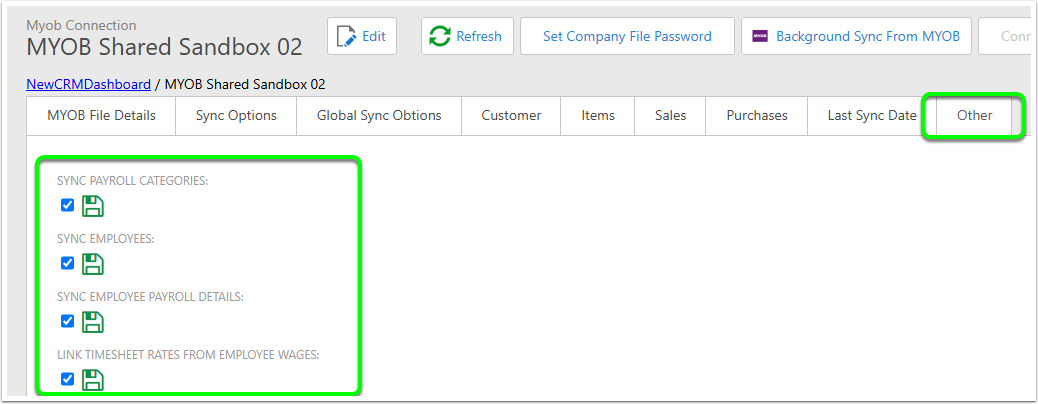
and ensure the following settings are enabled:
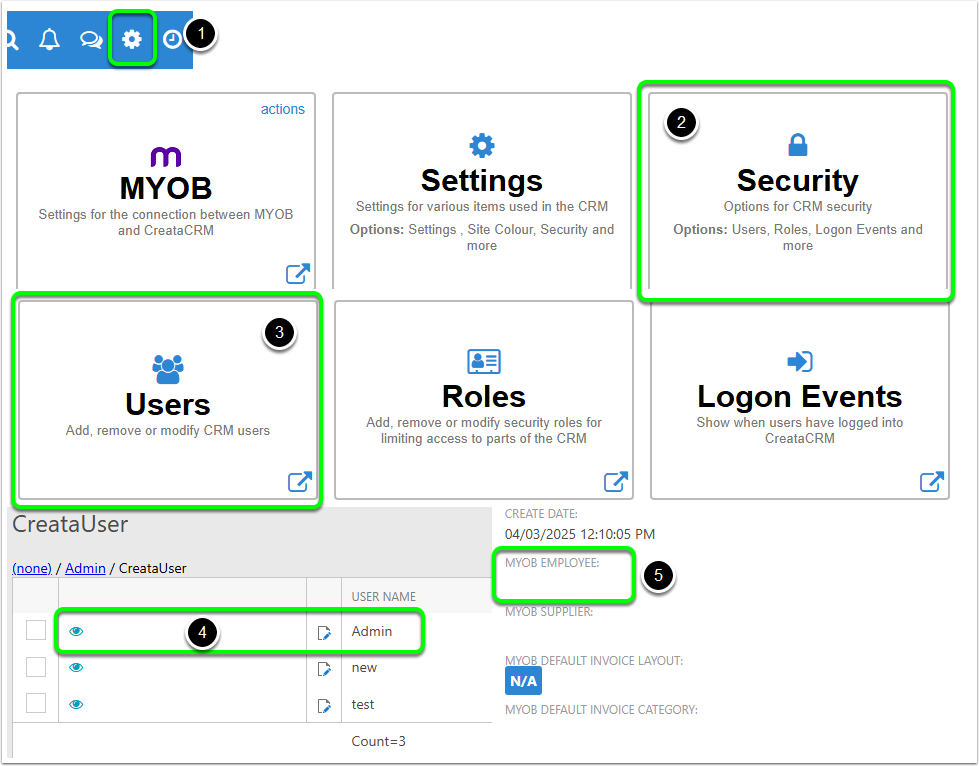
You will also need to ensure that each user is linked to a MYOB Employee.
The field is at the bottom of the right hand column in the User Detail view.
Importing from Xero
Go to the Xero settings...
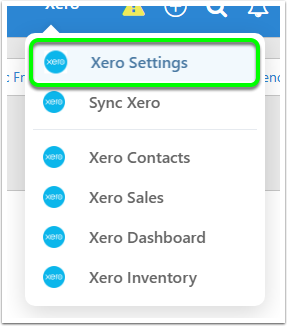
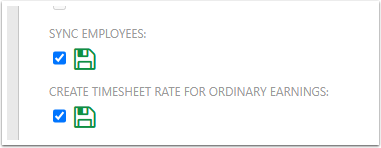
In the Xero tab, ensure these settings are enabled:
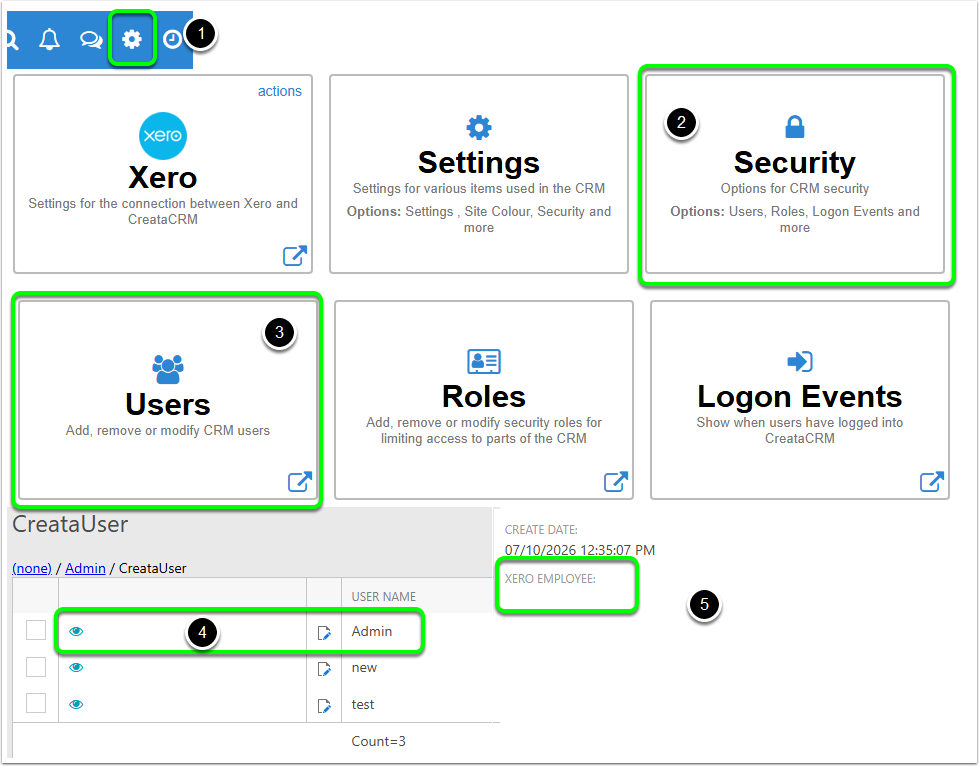
You will also need to ensure that each user is linked to a Xero Employee.
The field is at the bottom of the right hand column in the User Detail view.
Creating manually
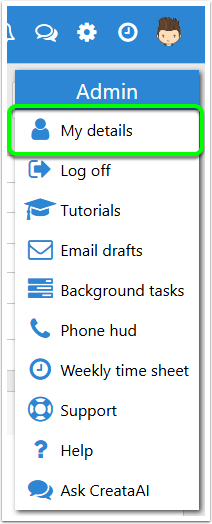
Go to a user record. The quickest way to access is to go to your user record via the menu in the top right.
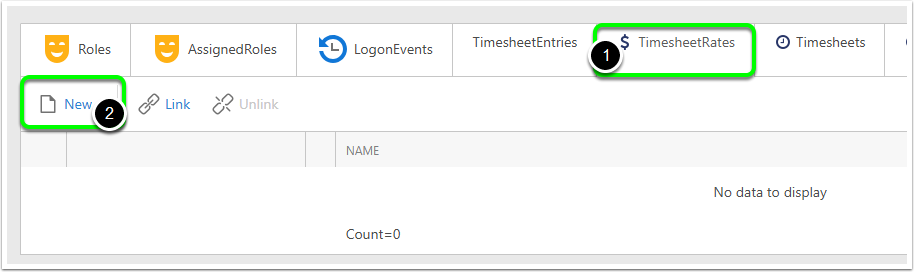
Scroll down to the tabs at the bottom, and in the Timehseet Rates tab, click on "New".
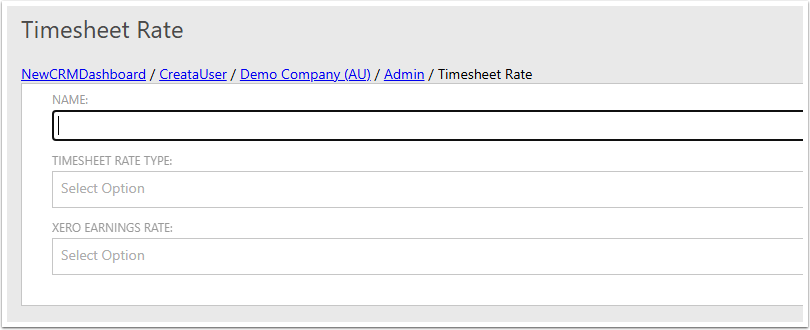
Enter a name and choose a rate type.
If you have an accountancy package linked, you can link the Earnings Rate of the package here. The example here shows a Xero field, but there will be similar fields for MYOB and Reckon.
Once the data has been entered, click the Save button.
Creating a Timesheet
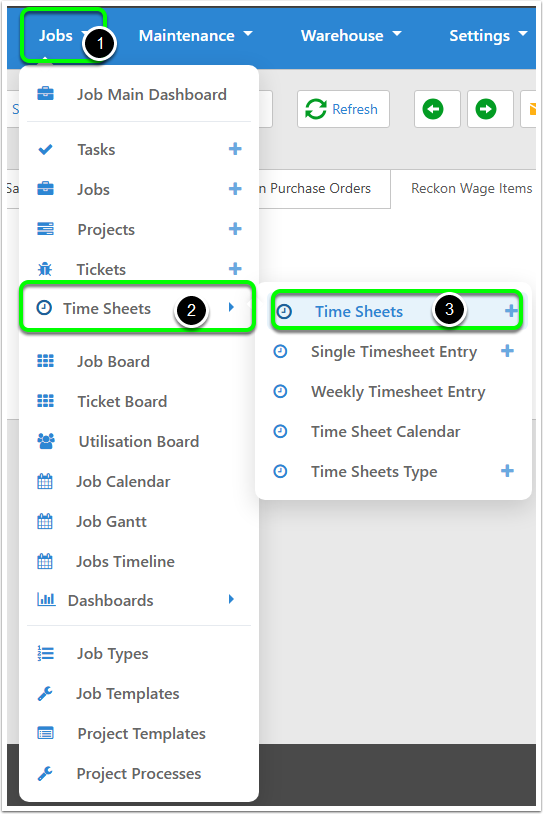
Open the Timesheets dashboard by going to Jobs > Time Sheets > Time Sheets.
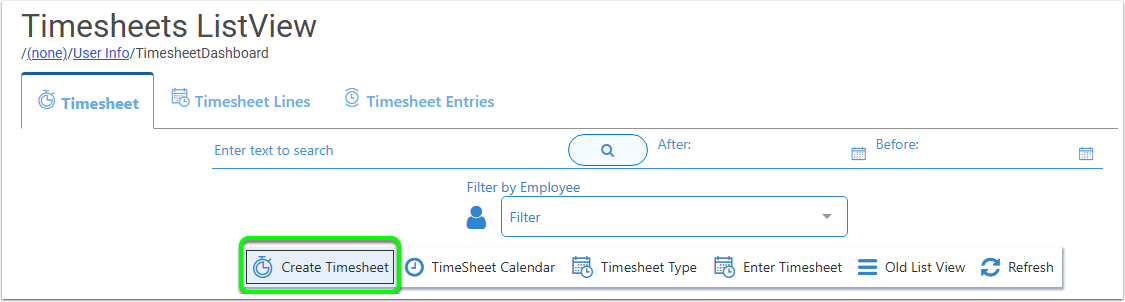
Click on "Create Timesheet".
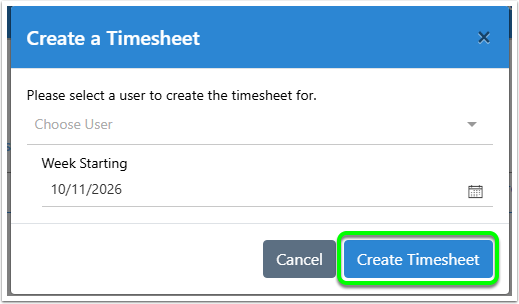
A small window will pop up asking for some more information about the timesheet you're creating.
You will need to select the user that the timesheet is for, and select the first day of the working week.
Once you've entered this information, click "Create Timesheet".
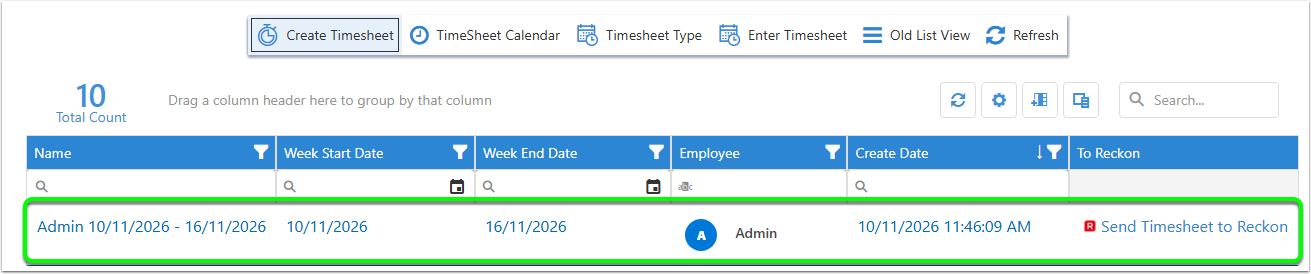
This will add a new entry into the table on the main view. Double click on this entry to open it.
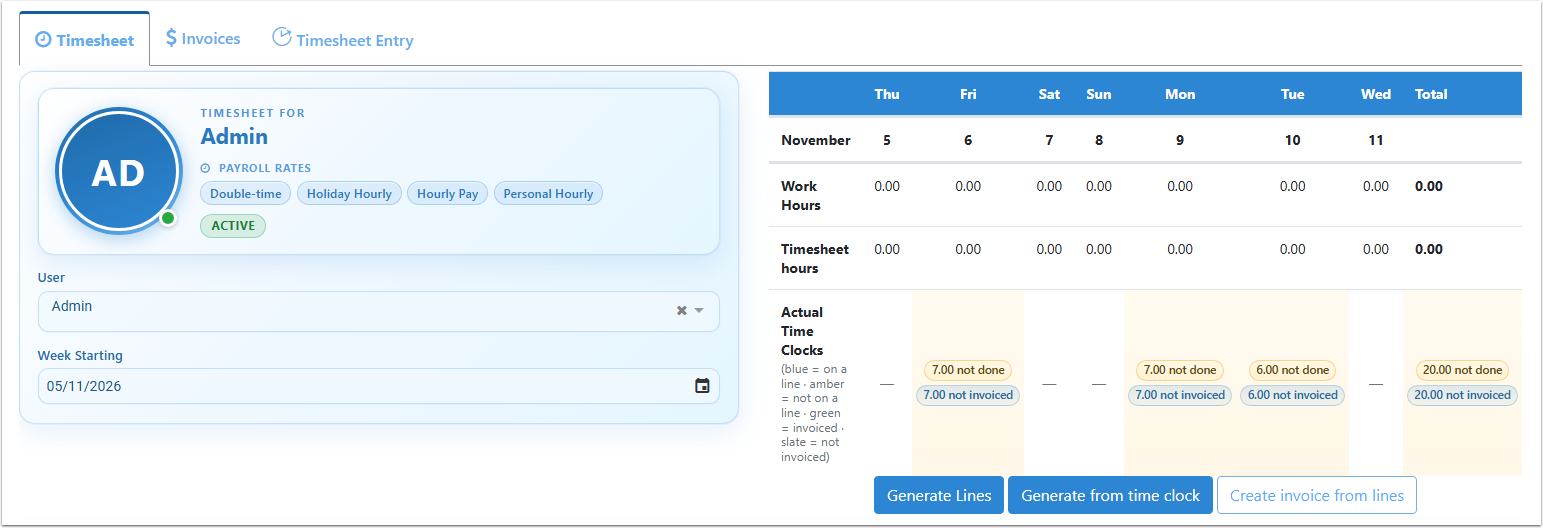
On the main view you can see the current user and Week Start date that you selected earlier.
On the right are the Work hours, timesheet hours and buttons to add information from sources.
Adding data to a Timesheet
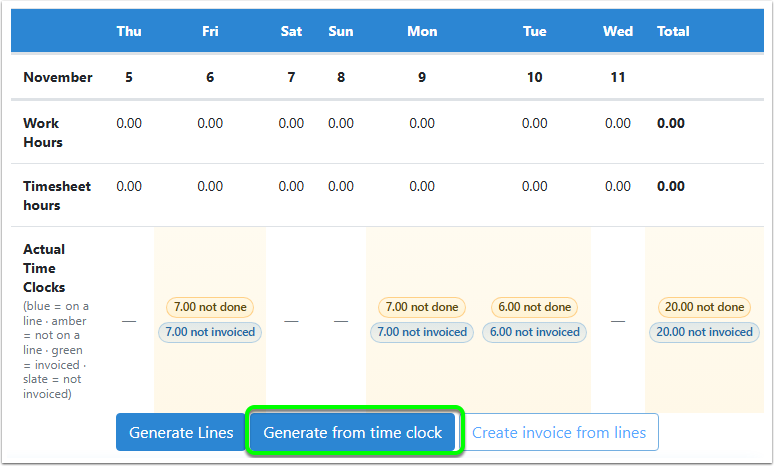
If your users use the Clock in/out system in CreataCRM, the time clock hours will be displayed in the third line.
Click on "Generate from time clock" to create timesheet lines from the time clocks.
In the popup, check that all of the data is correct, remove any lines that you don't want to appear on the timesheet, then click on Continue. You'll also be asked to confirm that everything is correct (eg. there are no lines you want to skip).
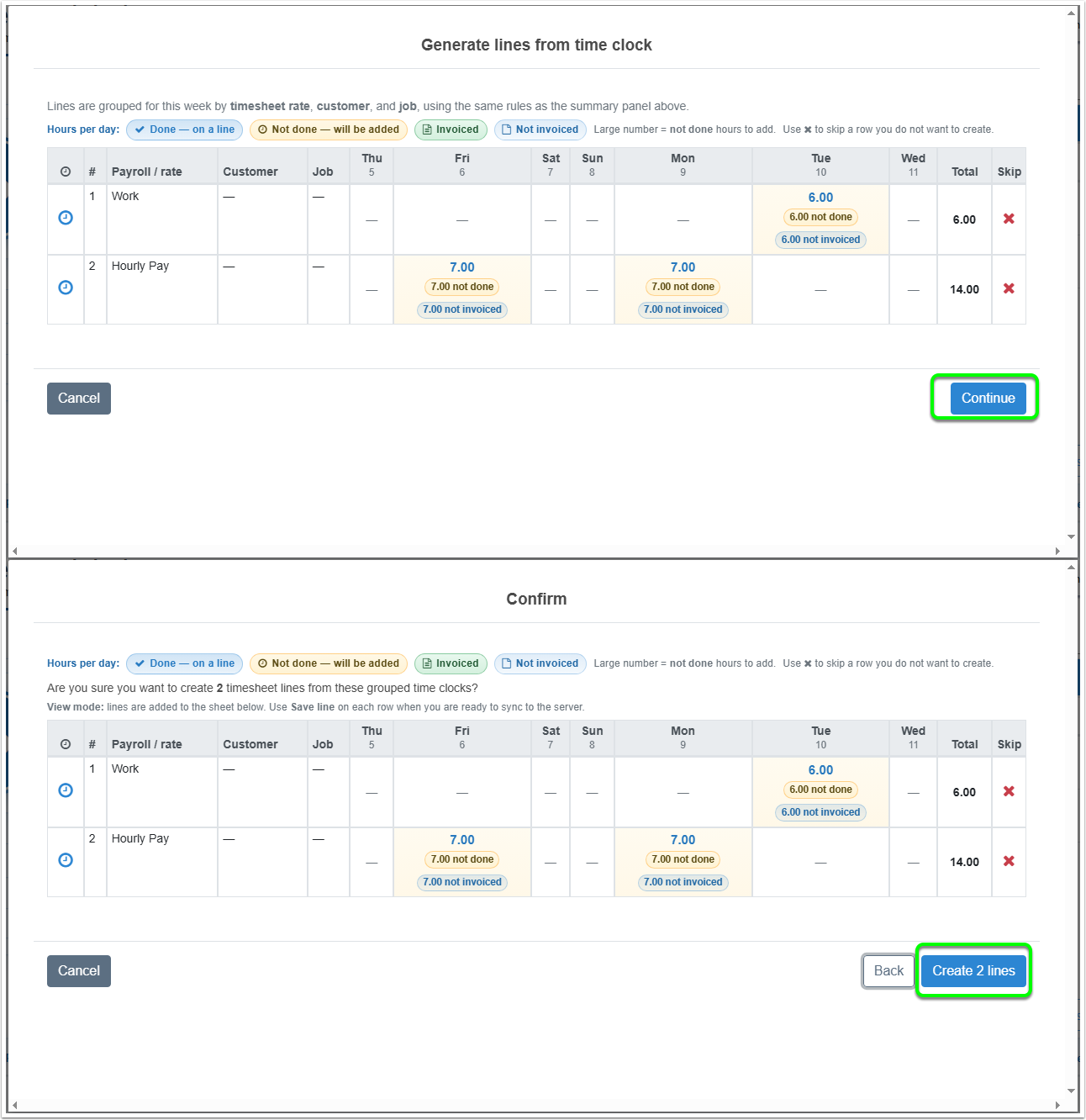
the data from these lines will be added to the Timesheet lines.
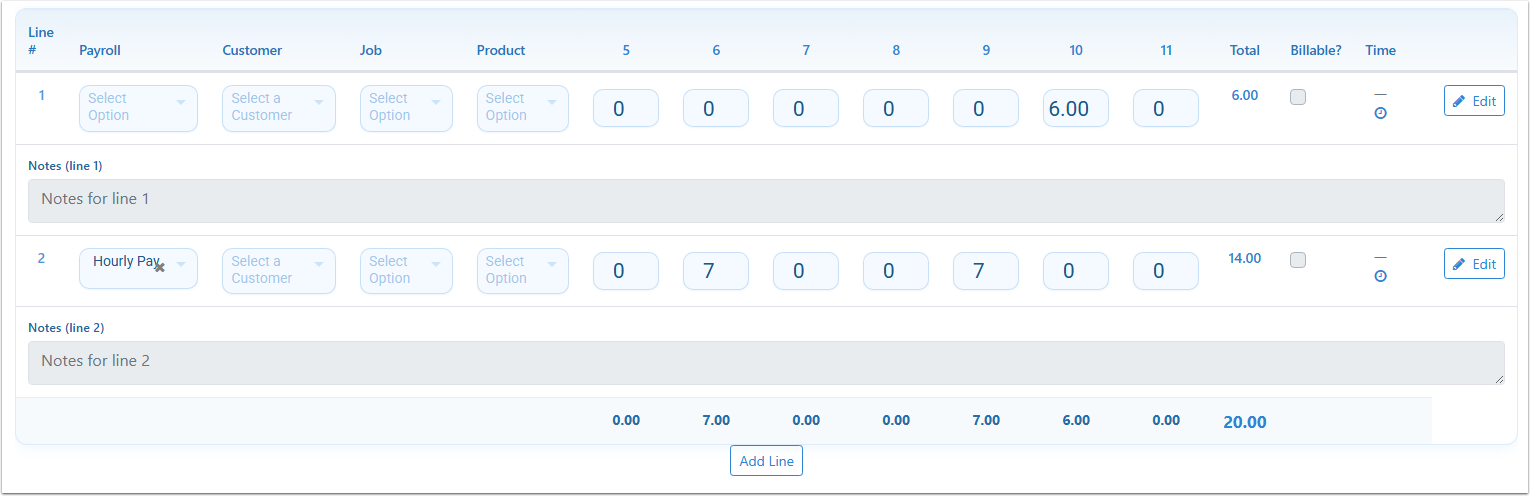
Earnings Rate item is missing
You may have a line created that is not linked to a payroll Earnings Rate item, eg. Line 1 in the previous picture. To fix this, just edit the line and select the correct item from the list beneath "Payroll". Then click on "Save Line" at the top.
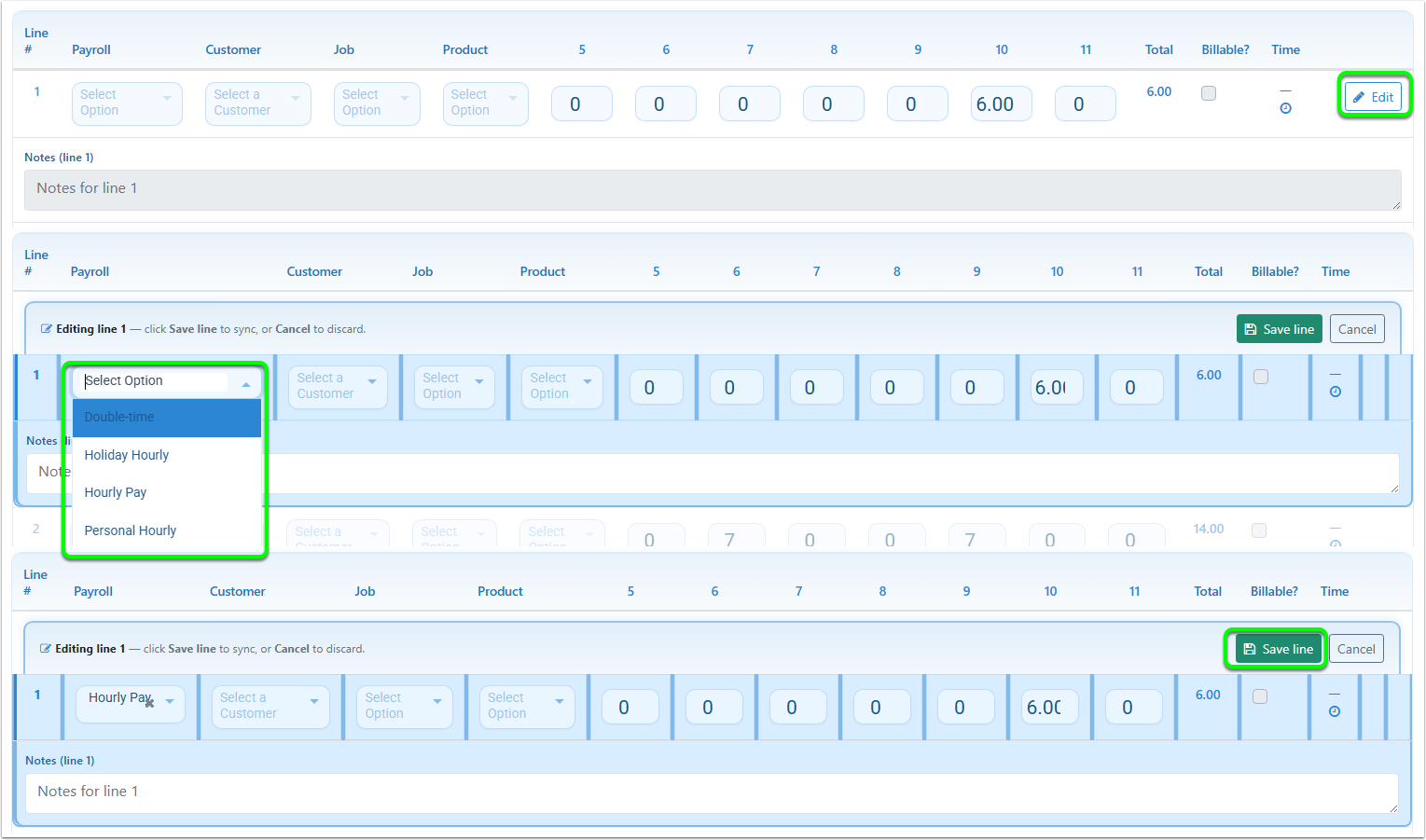
Adding new lines manually
You can also manually add lines to the timesheet. At the bottom of the current timesheet lines, click "Add Line".
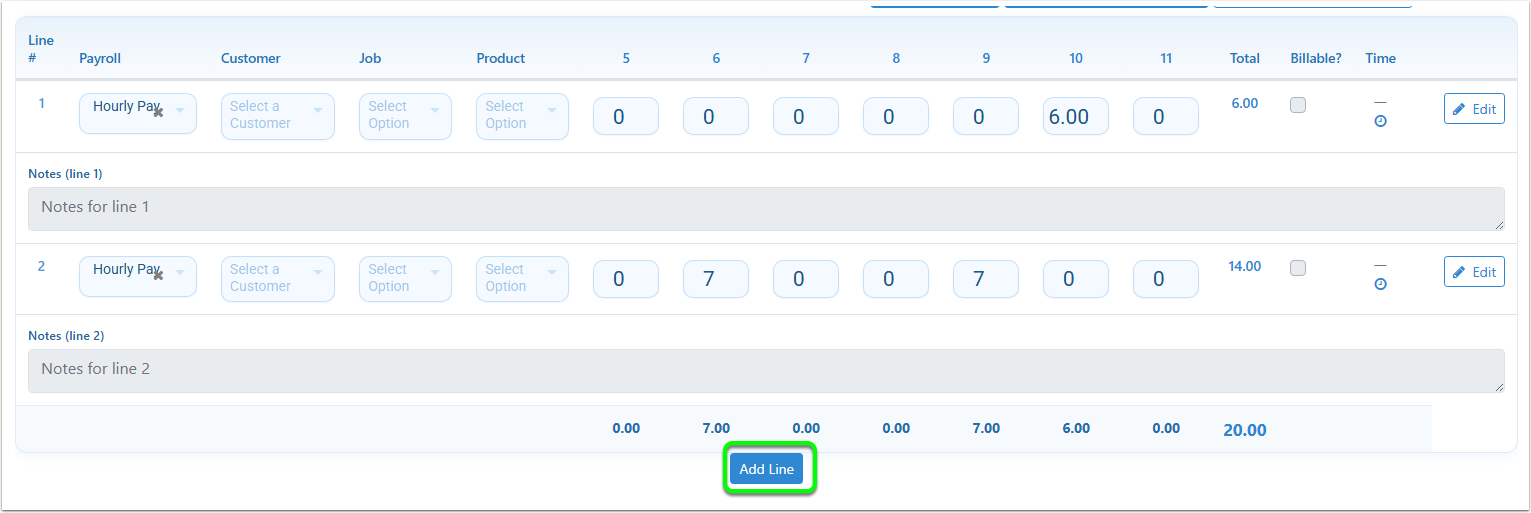
A new line will be added to the bottom of the timesheet lines, and immediately put into Edit mode.
Enter the data for this line, then click Save. Please ensure that you add an Earning Rate under the Payroll.header.

Adding timesheets to an Accountancy Package
Some accountancy packages have a couple of extra restrictions on what data can be in the timesheets that you add into them.
Reckon
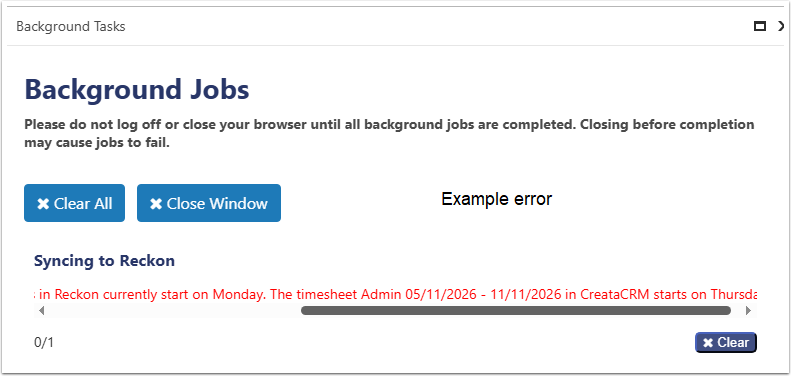
Reckon's restriction on Timesheets is that the First Day of the Timesheet must match the First Day of Week value in the Time Tracking Preferences in the Settings in Reckon itself.
If you First Day of Week in Reckon is Tuesday, you won't be able to add a timesheet into Reckon unless it also starts on a Tuesday.
To add a timesheet into Reckon, go back to the Timesheet List and click on "Send Timesheet to Reckon" on the right.
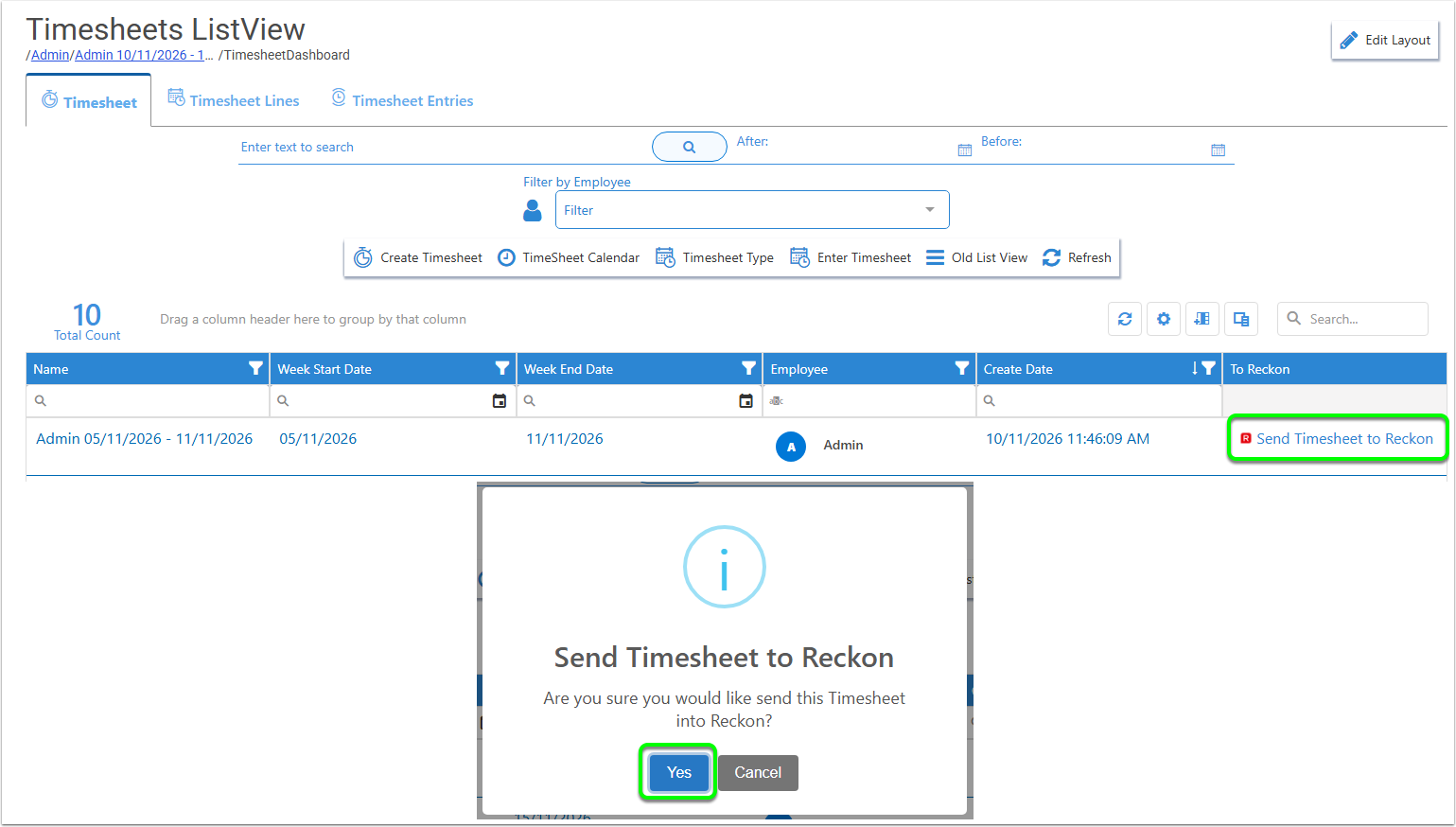
The Background Tasks window will show, and will signify when the addition is complete or will display an error if something is wrong.
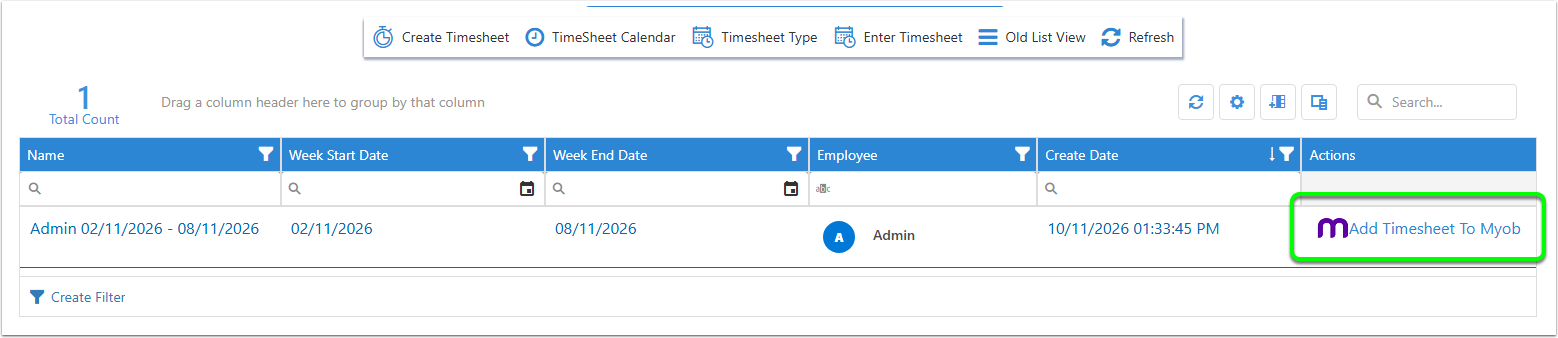
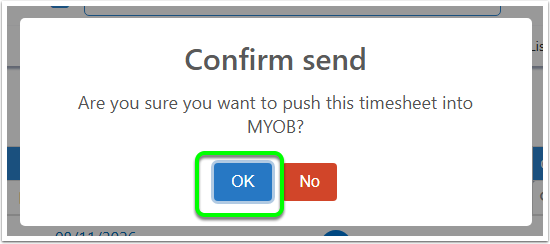
MYOB
Xero
Not currently available.